Troubleshooting
Most webhook problems come down to one of three questions: did HealthEx send it, did your endpoint answer, and did the signature verify. The delivery log answers the first two directly, including the exact bytes we sent and the exact response we got back. This page covers reading it, the failure modes we see most often, and how to rotate a signing secret without dropping events.
Reading the Delivery Log
Go to Admin → Webhooks, open a webhook, and select the Delivery log tab. Each row is one delivery attempt, so a single event that needed four tries appears as four rows.
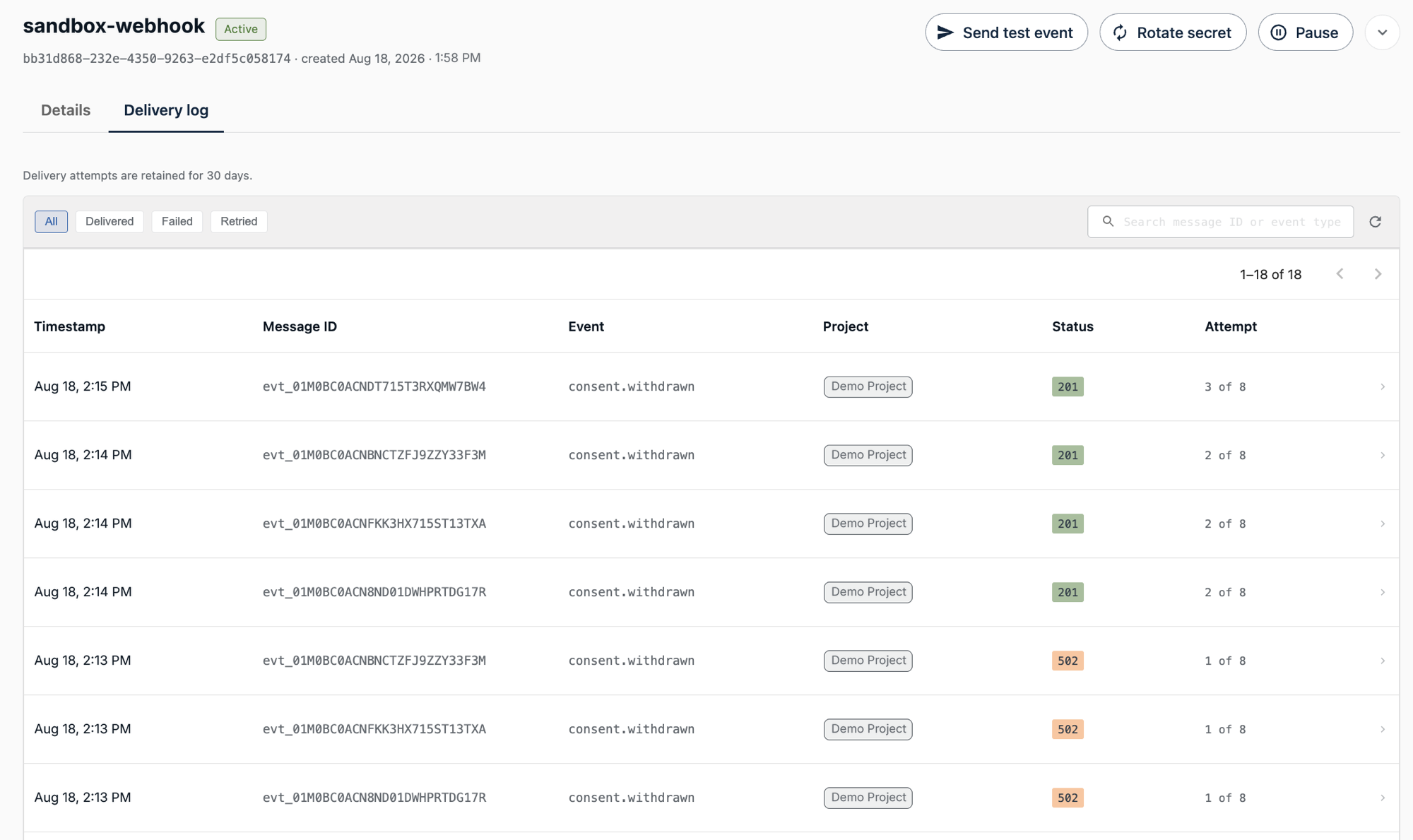
| Column | Content |
|---|---|
| Timestamp | When this delivery attempt was made — the webhook-timestamp header value, not the event's own timestamp. For a retry, this is the retry time, not when the event originally occurred; see the two timestamps. |
| Message ID | The event's webhook-id. The join key between our logs and yours. |
| Event | The event type, such as consent.withdrawn. |
| Project | The project the event pertained to — useful on webhooks scoped to all projects. |
| Status | The HTTP status code your endpoint returned, or timeout / error where we never got a response. Color-coded by outcome. |
| Attempt | Which attempt this row represents, out of the maximum of eight. |
The Status cell's color tells you the outcome, which is what the filters key on:
- Delivered (green) — your endpoint returned
2xx. Done. - Retried (amber) — this attempt failed and another is scheduled. The event is still in flight.
- Failed (red) — this attempt failed and no further attempt will be made, either because the retry schedule is exhausted or because your endpoint returned
410 Gone.
So a row reading 502 in red is a 502 we will not retry, while the same code in amber means another attempt is coming.
Filter by All, Delivered, Failed, or Retried, and use the search box to search by message ID or event type. Searching a webhook-id you have from your own logs is the fastest way to see every attempt for one event.
Inspecting a Delivery
Click any row to open the Delivery inspector, which shows exactly what crossed the wire:
- Headers sent — the
webhook-id,webhook-timestamp, andwebhook-signaturewe sent. Compare these against what your server logged if a signature isn't verifying. - Payload sent — the raw body. This is the byte string the signature was computed over.
- Response received — the status code, response time in milliseconds, size in bytes, and body. Network-level failures appear here as
timeoutorerrorwith detail instead of a status code.
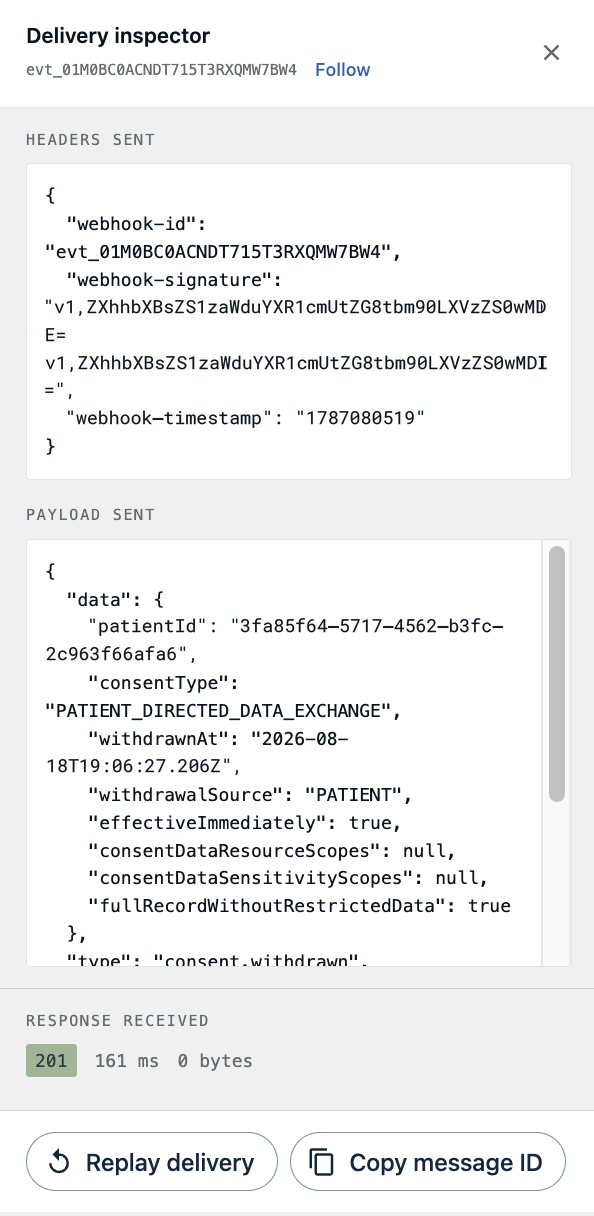
Follow narrows the log to every attempt of the message you're inspecting, which is how you see one event's whole retry history at a glance. Copy message ID puts the webhook-id on your clipboard for searching your own logs.
Replaying a Delivery
Replay delivery in the inspector re-sends the stored payload as a fresh attempt. Use it once you've fixed whatever was wrong on your side and want an event redelivered without waiting for, or having exhausted, the retry schedule.
Replay requires the webhook to be Active. While it's paused the button is disabled, with a tooltip reading "Webhook is paused. Resume to replay deliveries." Resume the webhook first, then replay.
A replay carries the same webhook-id as the original, so a correctly-written handler will recognize it as already-seen and no-op. That is the intended behavior — replay is for events your endpoint never successfully processed. If you need to reprocess an event you already accepted, clear it from your own deduplication store first.
Delivery attempts are retained for 30 days, then deleted automatically. Export anything you need for longer-term audit before then.
Common Failure Modes
| Symptom | Cause |
|---|---|
| No signature ever verifies, on any delivery | The signing secret is being HMAC-ed as an ASCII string. Strip whsec_ and base64-decode the remainder to get the key bytes |
| No signature verifies, but headers and secret look correct | The body is being parsed and re-serialized before signing. Sign the raw bytes exactly as received |
| Verification worked, then began failing about a day after a secret rotation | The verifier reads only the first value in webhook-signature. During a rotation two space-separated signatures are sent — iterate over all of them |
Timestamp outside tolerance window on legitimate deliveries | The receiver is comparing against the body's timestamp instead of the webhook-timestamp header, or its clock has drifted more than five minutes |
Every attempt shows timeout in the delivery log | The handler exceeds the 10-second budget. Return 2xx first and process asynchronously |
Delivery log shows 301 or 302 | Redirects are not followed. Register the final URL as the endpoint |
| Endpoint is healthy but no events arrive | The webhook is paused, the event's project is outside its scope, or the event type isn't subscribed. Send a test event to confirm connectivity independently of scoping |
| A consent withdrawal happened but produced no event | The consent was an IAS consent or a FUTURE_DATA_USE consent, neither of which emits. See when the event fires |
| Status became Paused (auto) without anyone pausing it | The endpoint returned 410 Gone, which permanently stops delivery. Re-enable the webhook and make sure 410 isn't a framework default on that route |
| A gap in events lines up with a period when the webhook was paused | Events occurring while a webhook is paused are discarded, not queued. They cannot be recovered |
| The same event arrives more than once | Expected — delivery is at-least-once. Deduplicate on webhook-id |
| Add webhook rejects the URL | The scheme must be https. The only exception is http://localhost |
Rotating a Signing Secret
Rotation issues a new secret while keeping the previous one valid for 24 hours, so you can deploy the new one without a coordinated cutover.
Start it from Rotate secret — available in the row menu on the list view, in the webhook's detail page header, or as the Rotate link beside the masked secret.
- Click Rotate secret. A confirmation dialog explains that the action cannot be undone and that the existing secret keeps working for a 24-hour grace period.
- Confirm with Yes, rotate, or back out with Not now.
- The new secret is displayed once. Copy it and store it, exactly as at creation — it cannot be retrieved again.
- Deploy the new secret to your endpoint at your convenience within the next 24 hours.
During the grace period, every delivery is signed with both secrets and the webhook-signature header carries two space-separated values. A verifier that checks all of them accepts deliveries whether your deployment has the old secret or the new one, which is what makes the rollout zero-downtime. See Handling Multiple Signatures.
After 24 hours, only the new secret is used. Anything still holding the old one starts failing verification at that point.
Once the rotation dialog closes, the console does not display a countdown or the expiry time. Note when you rotated, and plan the deployment against that.
Do not rotate twice within a grace window. Only two secrets can be valid at once, so a second rotation discards the oldest — which is the secret your endpoint is probably still using. If you're unsure whether a rotation completed, verify your endpoint is accepting deliveries before rotating again.
Getting Help
If a delivery looks wrong on our side rather than yours, contact support@healthex.io. Include:
- The
webhook-idof the affected event, from the Message ID column - The timestamp of the attempt
- The webhook's name, and your organization
Those three let us find the exact delivery in our own logs immediately.
Next Steps
- Verifying Signatures: Worked examples and a test vector
- Retries and Failures: What we do between the attempts you see in the log