Logging In as a Test Patient
This walkthrough shows how to log in to HealthEx as a synthetic CLEAR test patient — no real identity or phone verification required.
1. Pick a test patient
Select a test patient from CLEAR Synthetic Test Patients, and note down their phone number. You'll need it a few steps from now.
2. Go to the HealthEx patient login
Go to HealthEx Patient Login.
3. Reveal Test Patient mode
At the login screen, click and hold Continue with CLEAR for 5 seconds until (Test Patient) appears next to it.
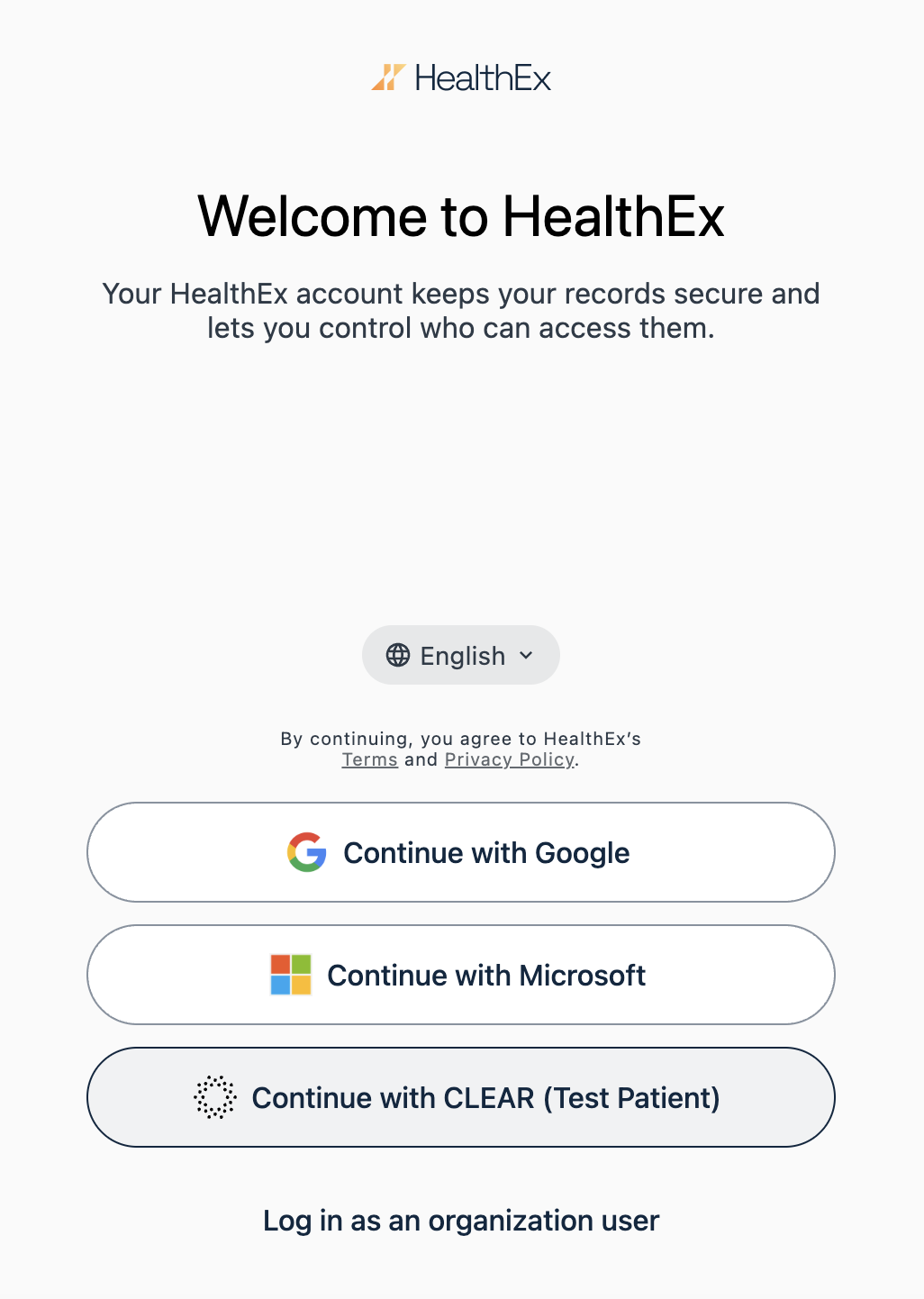
Click Continue with CLEAR (Test Patient).
4. Enter the test patient's phone number
After clicking Agree & Continue, enter the phone number of the chosen test patient and click Continue.
A pop-up will appear for HealthEx requires CLEAR to securely collect and share. Click Agree & Continue.
5. Verify with the testing-mode code
A banner will confirm you're in testing mode. Use the default code 123456 to proceed, or click Skip at the bottom of the screen.
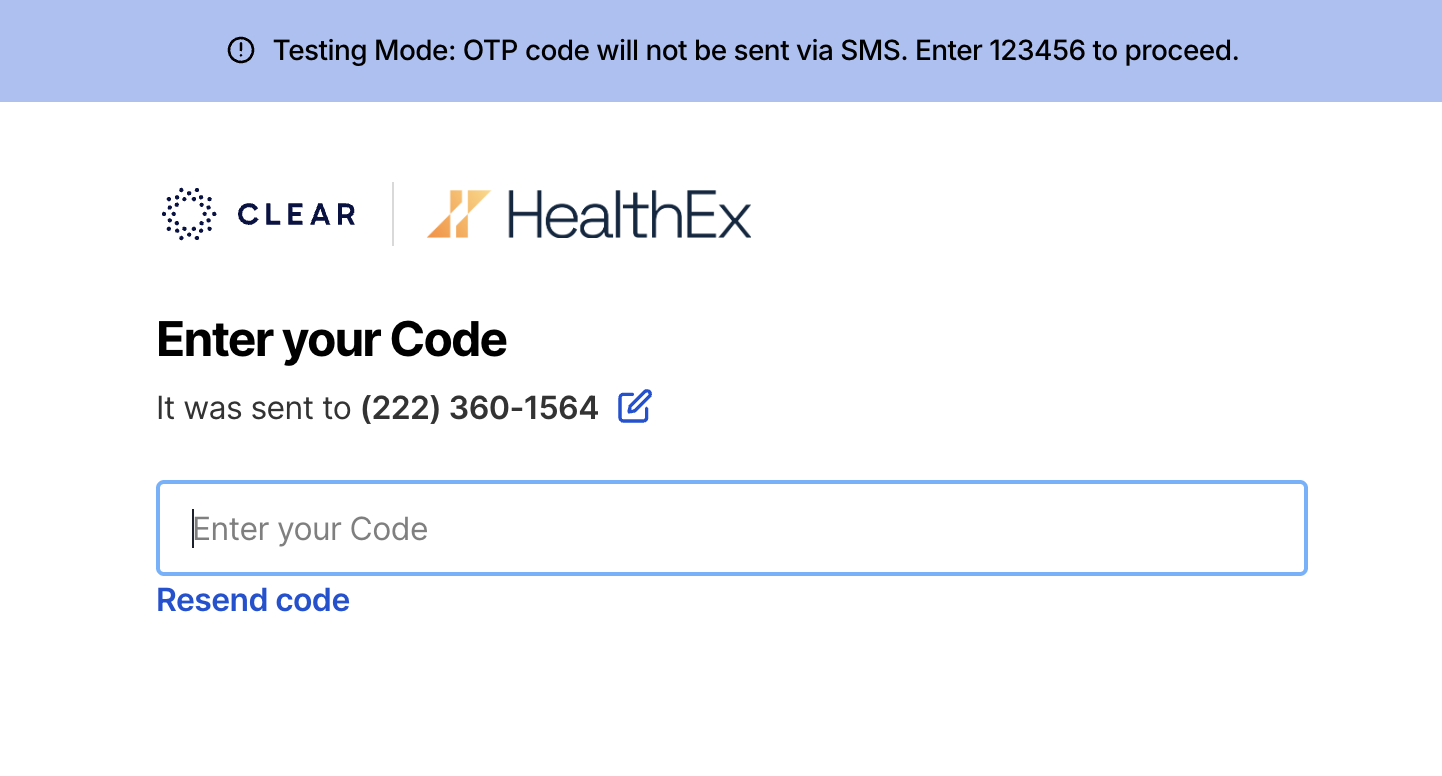
At the Finish on your Phone screen, click Skip at the bottom of the screen.
6. Confirm access to records
You may be prompted to confirm access to your records. Type in the test patient's name and click Confirm.
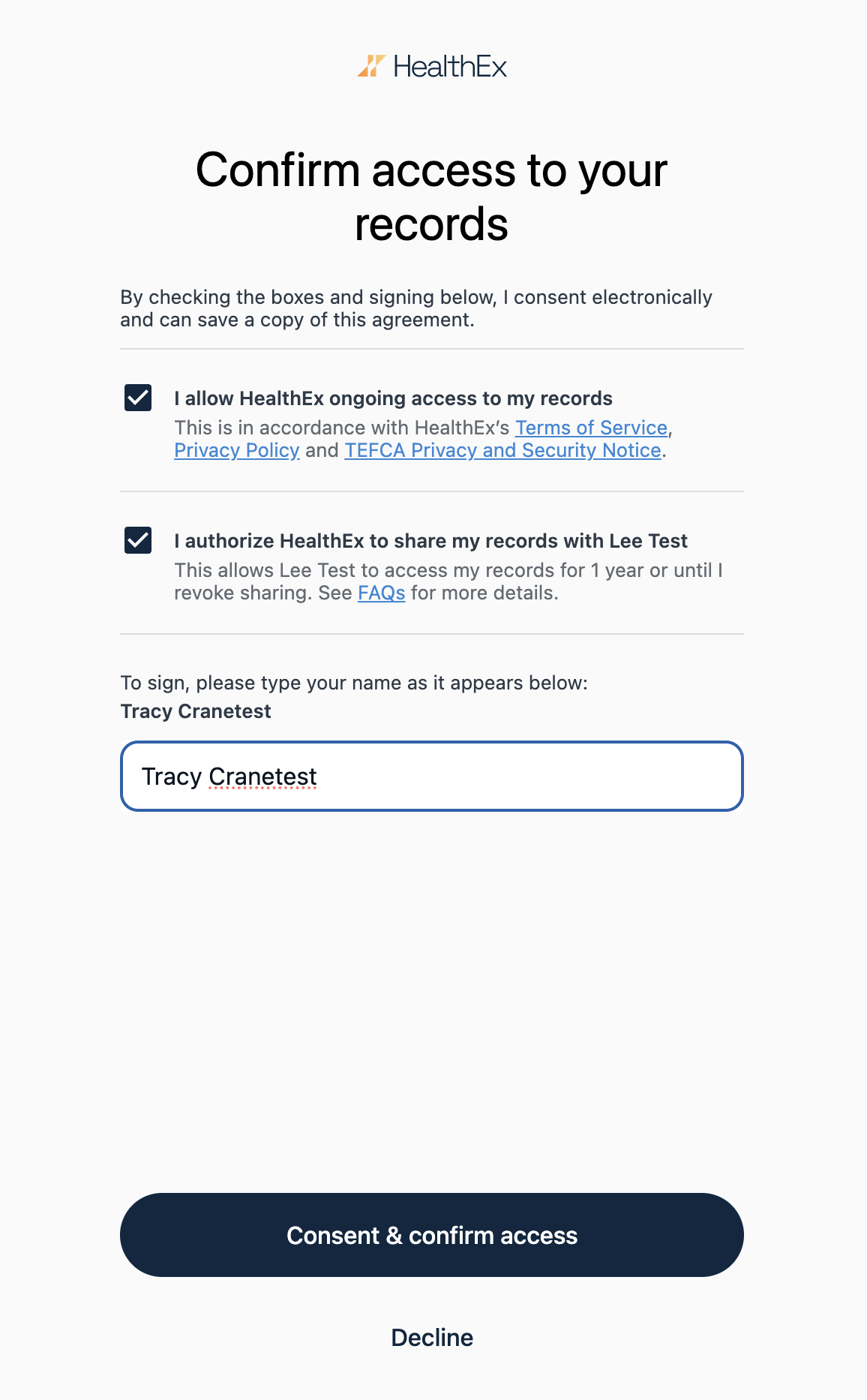
Once this step completes, you're logged in and ready to explore the app as the test patient. Continue to Viewing Your Health Record.